


MCP Server for Actifsource
With this release, we introduce the MCP Server for connecting Actifsource to an LLM. Through this interface, an LLM can connect to the MCP Server in order to query, modify, and validate resources – and thereby work on existing or new projects as well as trigger code generation. Details on the individual operations are documented in the respective tool descriptions. In addition, the functionality can be flexibly extended: custom tools, resources, and prompts can easily be made available to the LLM.
MCP Tools
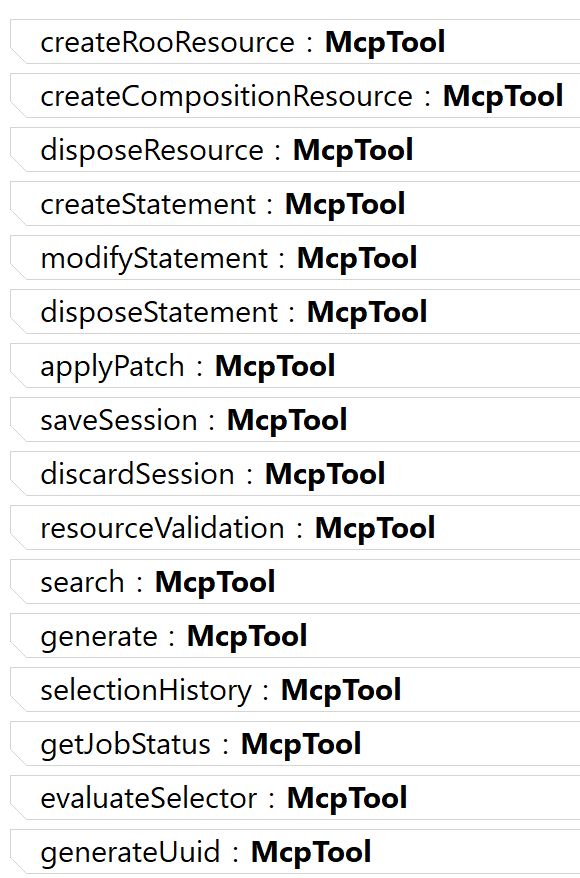
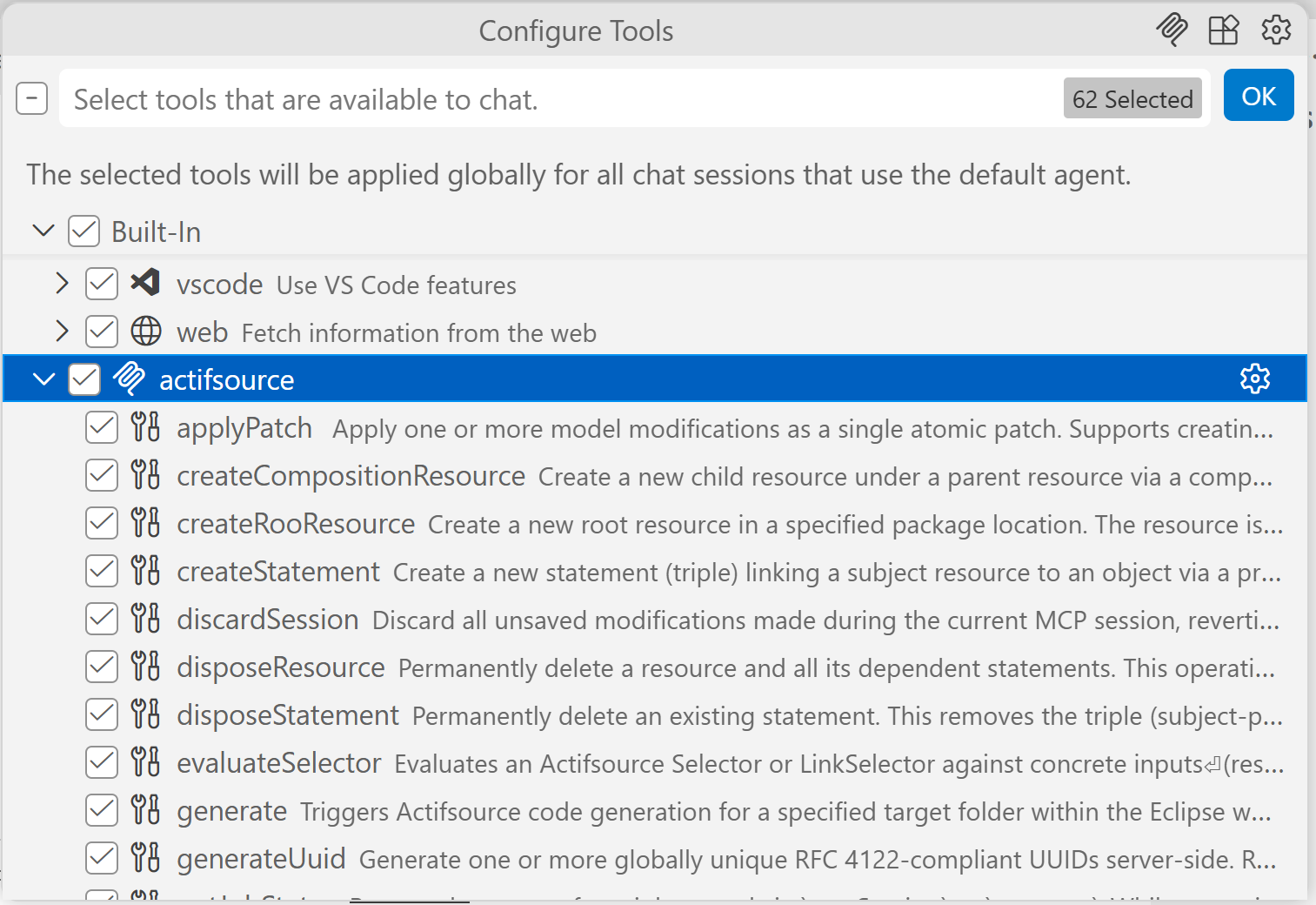
Tools allow the LLM to query or modify Actifsource resources. The following built-in tools are already available:
MCP Prompts
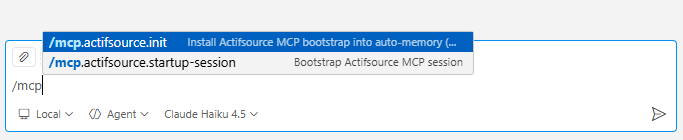
Prompts make it possible to provide the LLM with predefined slash commands – both static and dynamic (assembled via a template). Actifsource ships with various prompts, of which two are visible by default:

Startup-Session Prompt
Initializes the session so that the LLM can autonomously load the prompts required for a given task and process them efficiently. This prompt must be added again for every new session.
Init Prompt
So that the Startup-Session Prompt does not have to be started manually for every session, the Init Prompt can be executed once. This permanently stores the behavior as a skill.
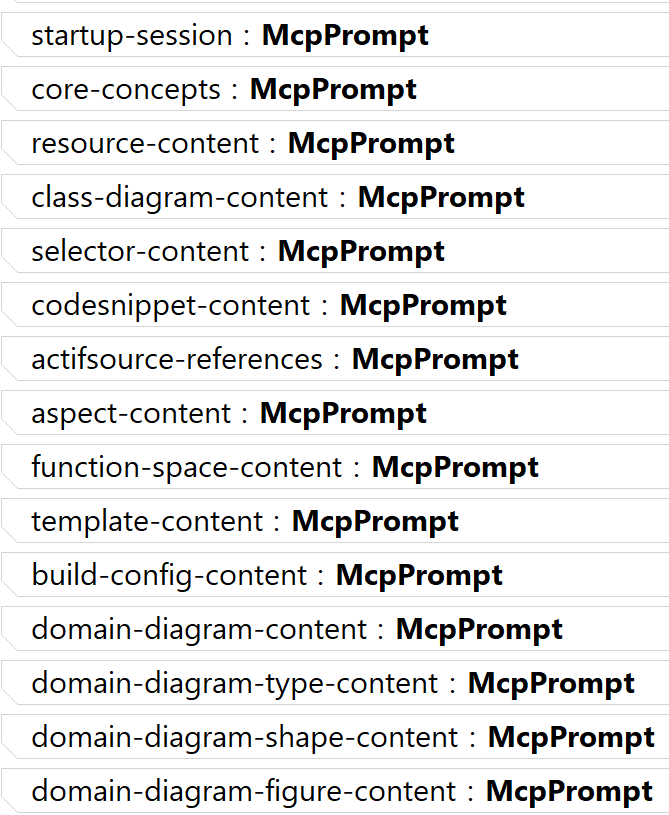
The remaining prompts are loaded by the LLM on demand.
MCP Resources
Resources provide the LLM with read access to resource contents. By default, Actifsource provides the asrResource, which allows the LLM to read the content of a resource via its GUID:
The level of detail is controlled via the MCP Resource Notes (see below).

MCP Resource Notes
Resource Notes allow instance-specific context to be added so that the LLM can understand a resource more quickly and easily. The following notes are available:
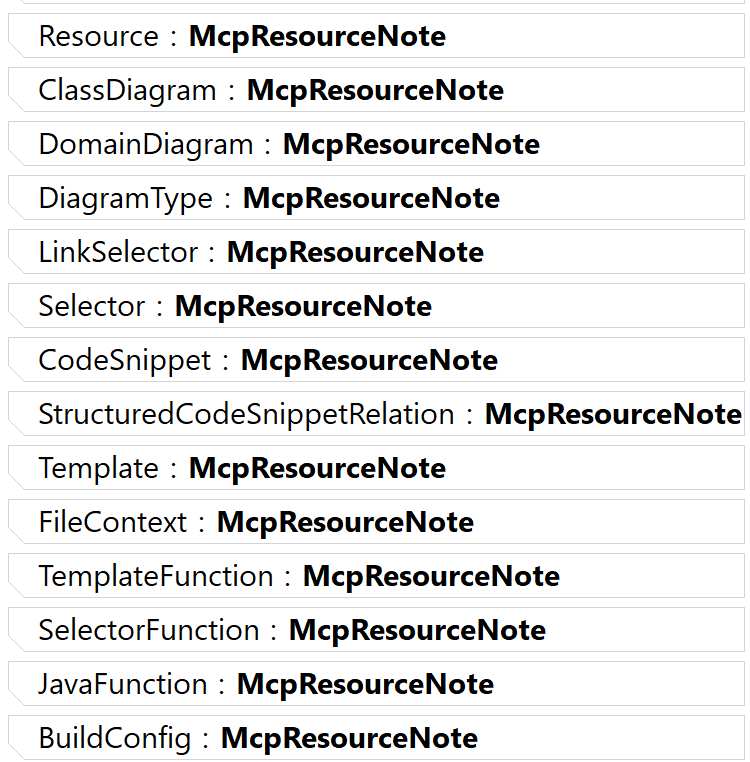
Type- and context-specific instructions should be placed in the class and property comments or in the prompts, while instance-specific instructions can be defined in the Resource Notes.
Extending MCP
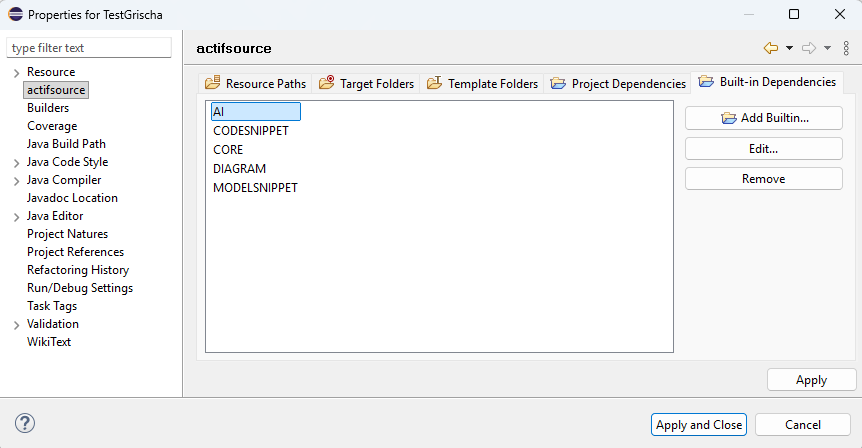
The functionality of the MCP Server can easily be extended by adding the built-in function AI and by creating instances of type McpSchema.
Builtin
McpSchema
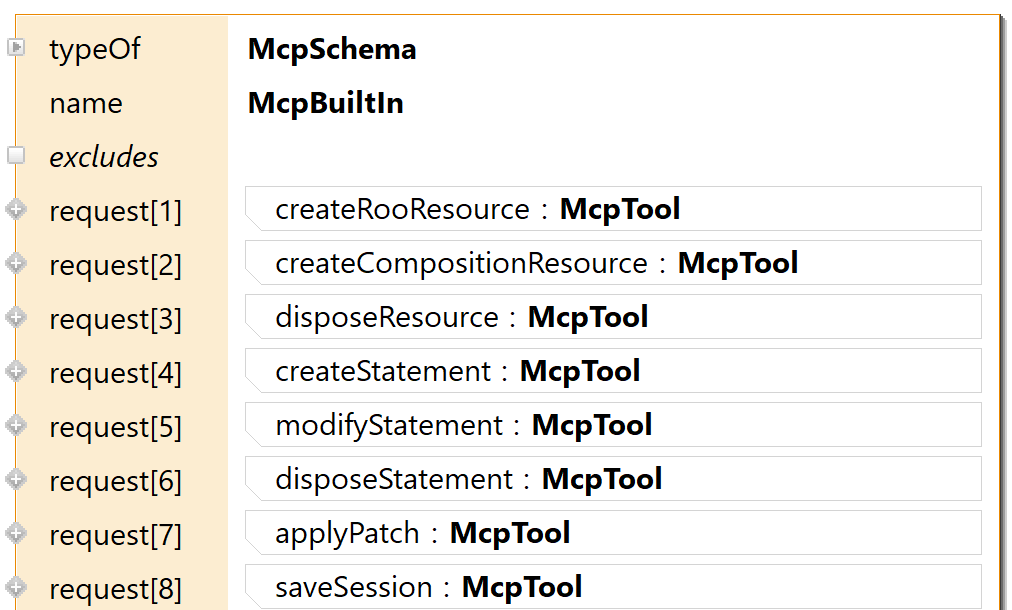
An example of how this can be done is available on Github: https://github.com/actifsource
Configuration
In order for Actifsource Eclipse to be accessible as an MCP Server, it must first be enabled under Eclipse → Preferences. After applying, restart Eclipse. The port on which the server is reachable can also be defined there:
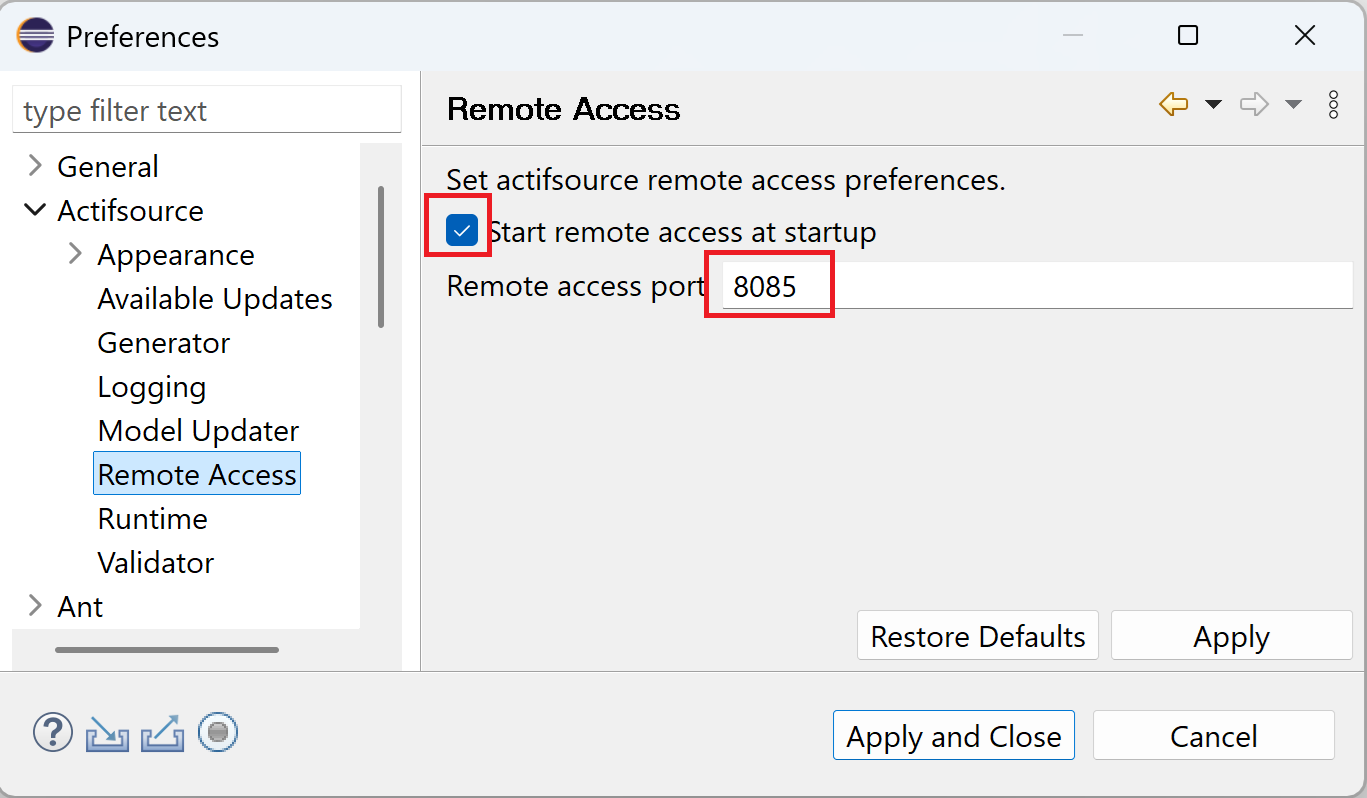
To use the MCP Server, it must be registered in the respective LLM client. By default, the server runs at http://localhost:8085/mcp/actifsource.
Claude
The MCP Server is registered using the following command:
claude mcp add --transport http --scope user actifsource http://localhost:8085/mcp/actifsource
or add a file named .mcp.json to the workspace root with the following content:
It can then be used directly within Eclipse, e.g. in the terminal.
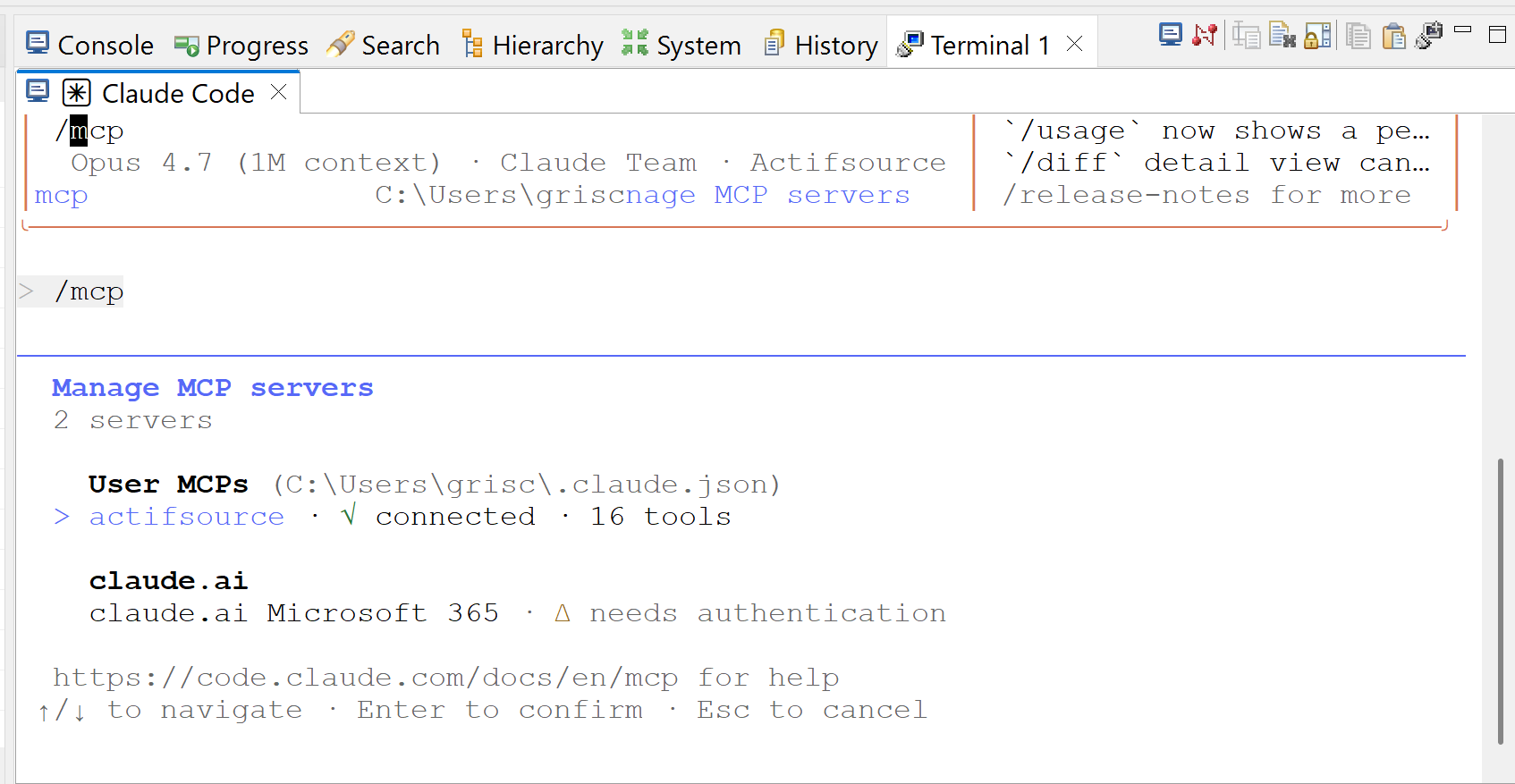
Whether the MCP server is connected can be verified using the /mcp slash command.
GitHub Copilot
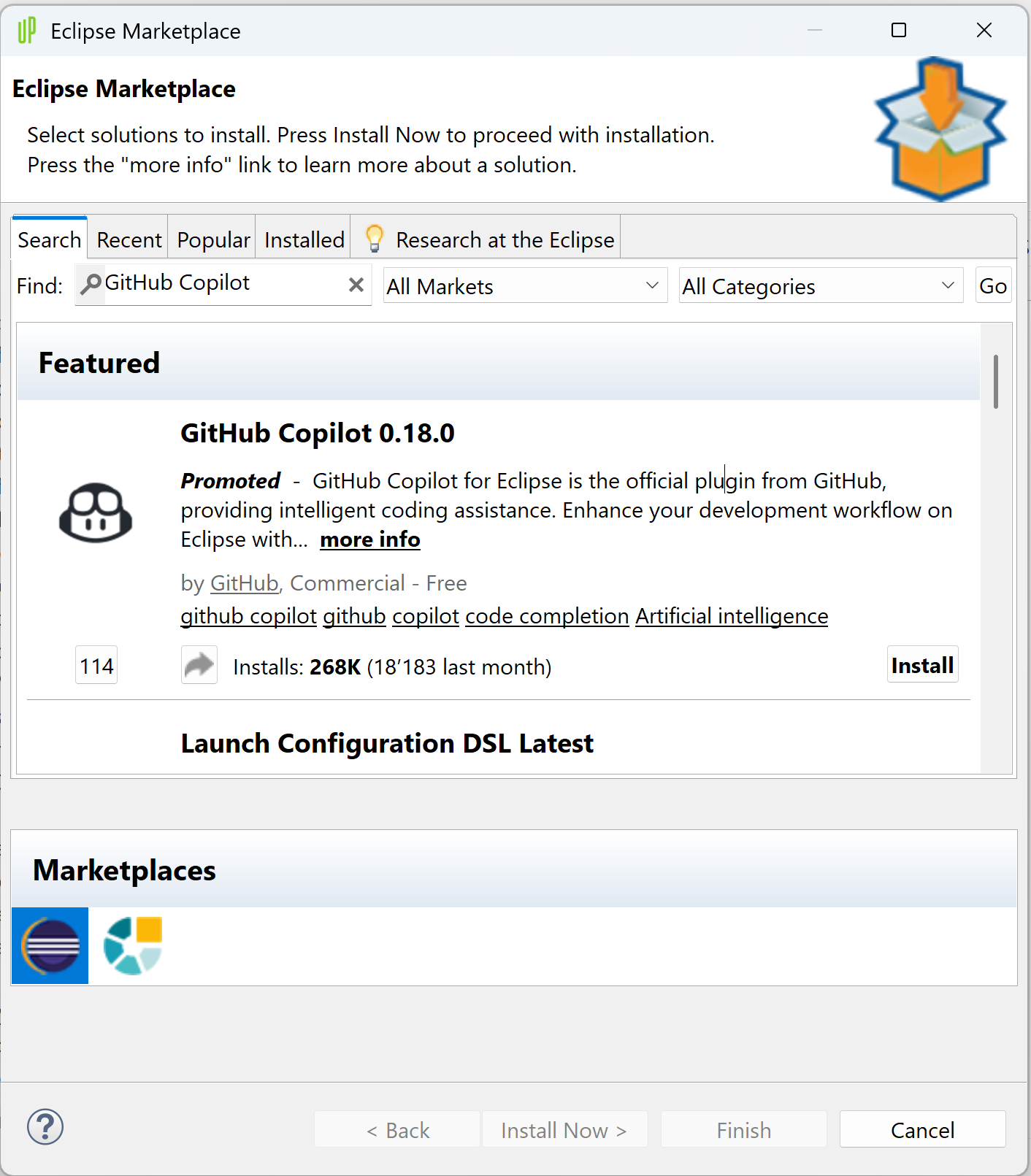
For GitHub Copilot, a plugin is available that can be installed in Eclipse.
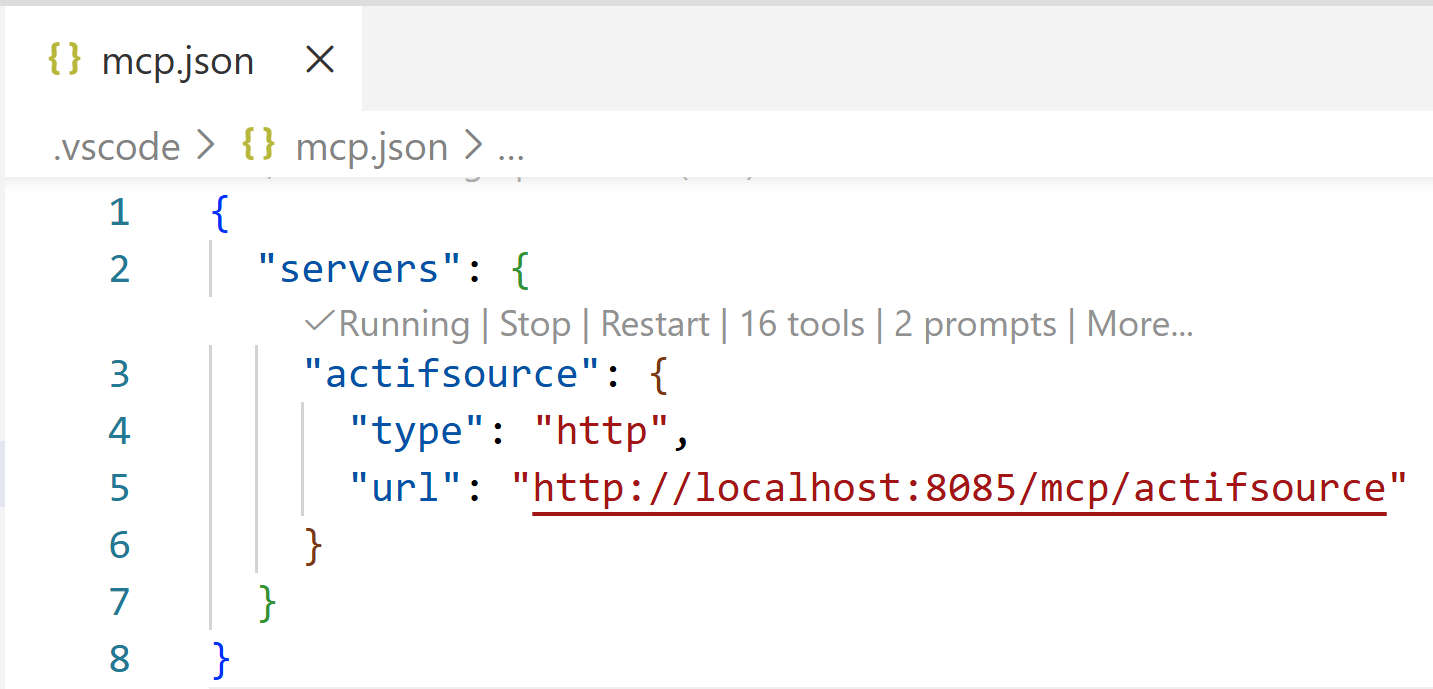
In VS Code, the MCP server can be registered and started through the mcp.json configuration file.
With this release, we introduce the MCP Server for connecting Actifsource to an LLM. Through this interface, an LLM can connect to the MCP Server in order to query, modify, and validate resources – and thereby work on existing or new projects as well as trigger code generation. Details on the individual operations are documented in the respective tool descriptions. In addition, the functionality can be flexibly extended: custom tools, resources, and prompts can easily be made available to the LLM.
MCP Tools
Tools allow the LLM to query or modify Actifsource resources. The following built-in tools are already available:
MCP Prompts
Prompts make it possible to provide the LLM with predefined slash commands – both static and dynamic (assembled via a template). Actifsource ships with various prompts, of which two are visible by default:
Startup-Session Prompt
Initializes the session so that the LLM can autonomously load the prompts required for a given task and process them efficiently. This prompt must be added again for every new session.
Init Prompt
So that the Startup-Session Prompt does not have to be started manually for every session, the Init Prompt can be executed once. This permanently stores the behavior as a skill.
The remaining prompts are loaded by the LLM on demand.
MCP Resources
Resources provide the LLM with read access to resource contents. By default, Actifsource provides the asrResource, which allows the LLM to read the content of a resource via its GUID:
- asr://guid – full content
- asr://guid?truncated=true – truncated content
The level of detail is controlled via the MCP Resource Notes (see below).
MCP Resource Notes
Resource Notes allow instance-specific context to be added so that the LLM can understand a resource more quickly and easily. The following notes are available:
Type- and context-specific instructions should be placed in the class and property comments or in the prompts, while instance-specific instructions can be defined in the Resource Notes.
Extending MCP
The functionality of the MCP Server can easily be extended by adding the built-in function AI and by creating instances of type McpSchema.
Builtin
McpSchema
An example of how this can be done is available on Github: https://github.com/actifsource
Configuration
In order for Actifsource Eclipse to be accessible as an MCP Server, it must first be enabled under Eclipse → Preferences. After applying, restart Eclipse. The port on which the server is reachable can also be defined there:
To use the MCP Server, it must be registered in the respective LLM client. By default, the server runs at http://localhost:8085/mcp/actifsource.
Claude
The MCP Server is registered using the following command:
claude mcp add --transport http --scope user actifsource http://localhost:8085/mcp/actifsource
or add a file named .mcp.json to the workspace root with the following content:
{ "mcpServers": { "actifsource": { "type": "http", "url": "http://localhost:8085/mcp/actifsource" } } }
It can then be used directly within Eclipse, e.g. in the terminal.
Whether the MCP server is connected can be verified using the /mcp slash command.
GitHub Copilot
For GitHub Copilot, a plugin is available that can be installed in Eclipse.
In VS Code, the MCP server can be registered and started through the mcp.json configuration file.